Adding accommodation
When you assign a candidate to one or multiple shifts, travel time is calculated for each shift independently.
If you have booked an accommodation for the candidate, you can upload this into skillo.
Adding accommodation to a shift will make Skillo recalculate the travel time from the accommodation address (departure) to the work site (destination).
From a shift
- Click on the shift in the calendar in order to open up the shift details modal

- Locate the middle column with the candidate and travel time details.
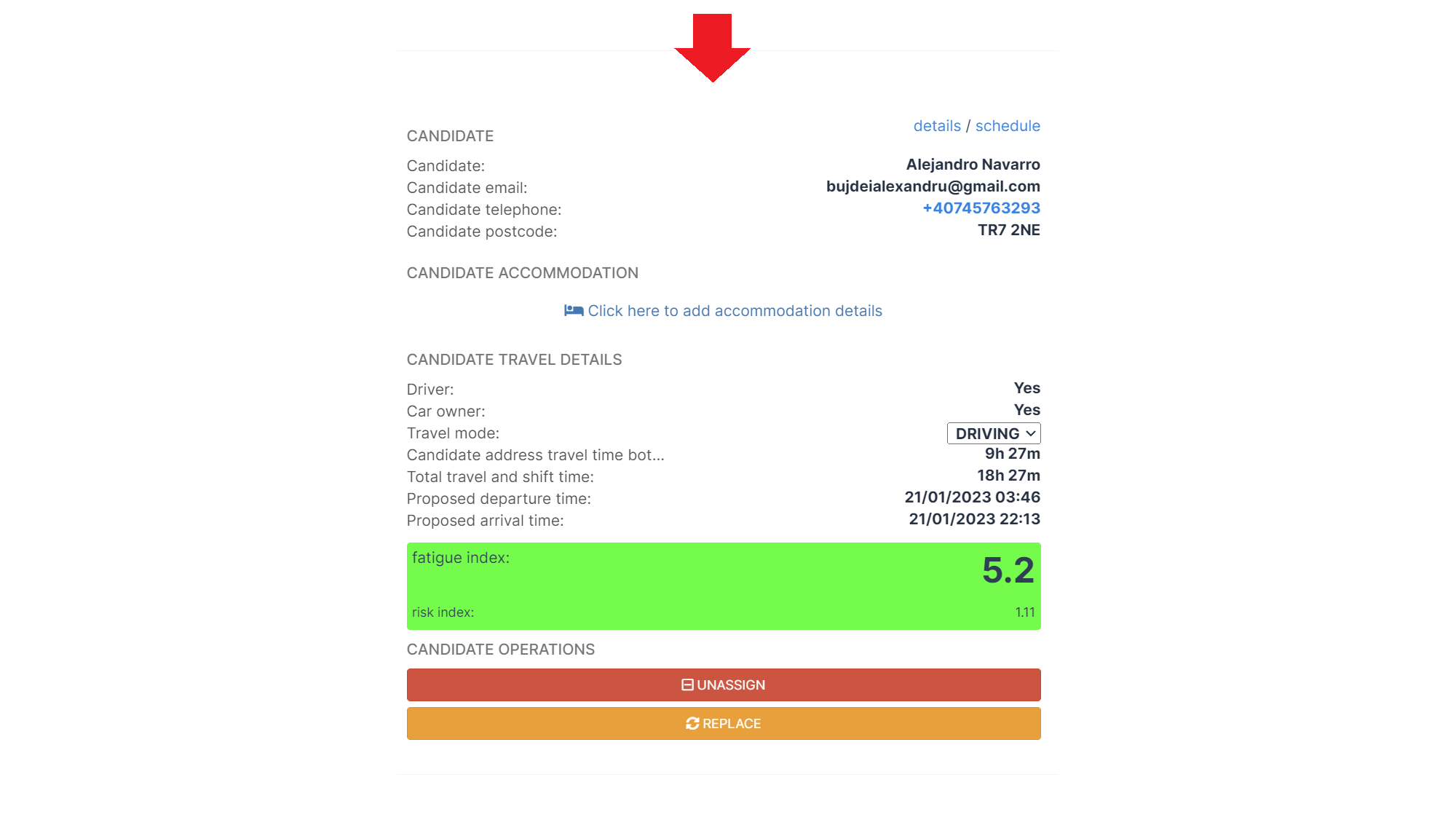
- Click on the "Click here to add accommodation details" button under the accommodation details section.
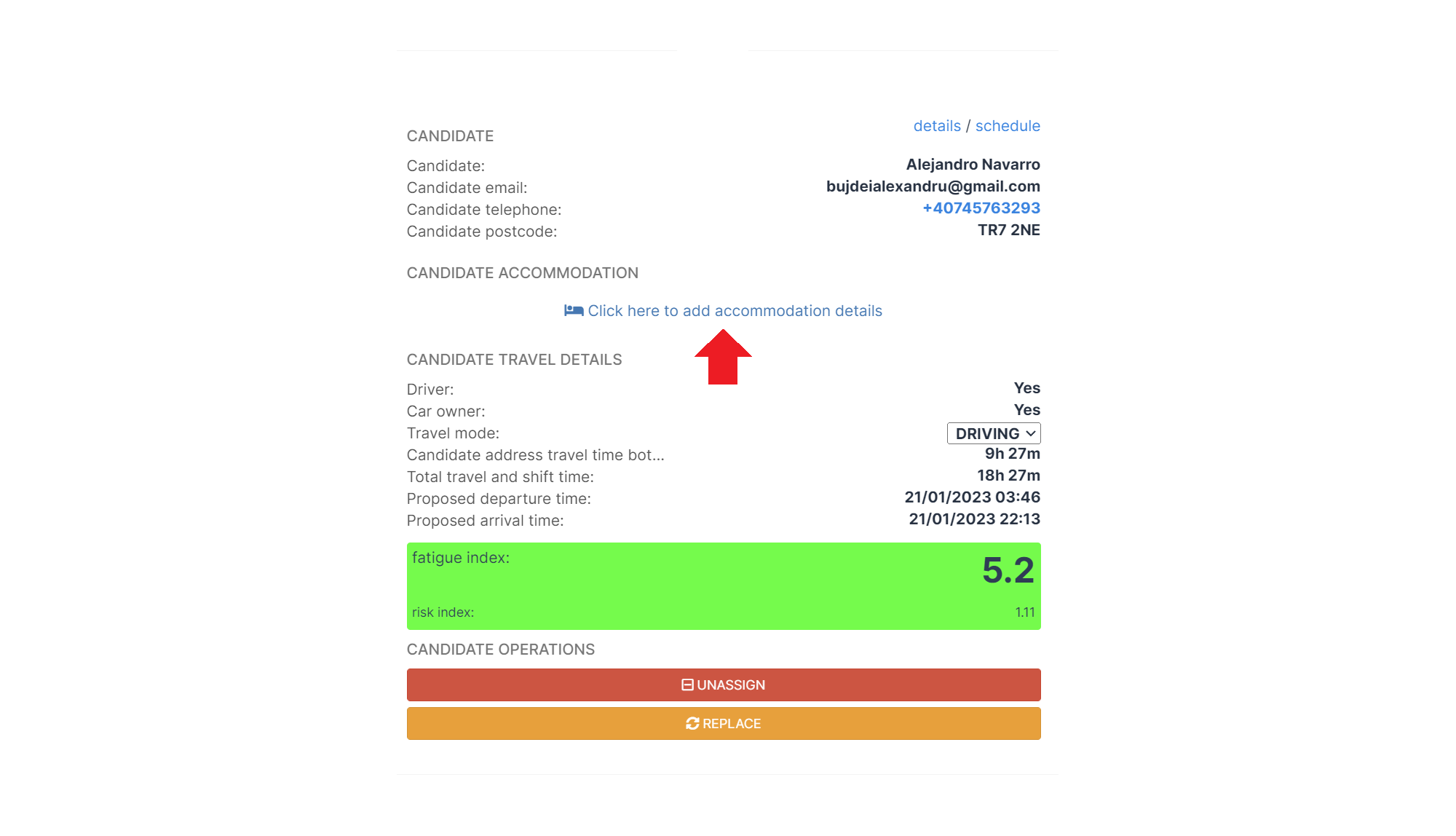
- Fill in the accommodation address (postcode preferrably and be sure to select from the dropdown) and add in a proof of accommodation file.
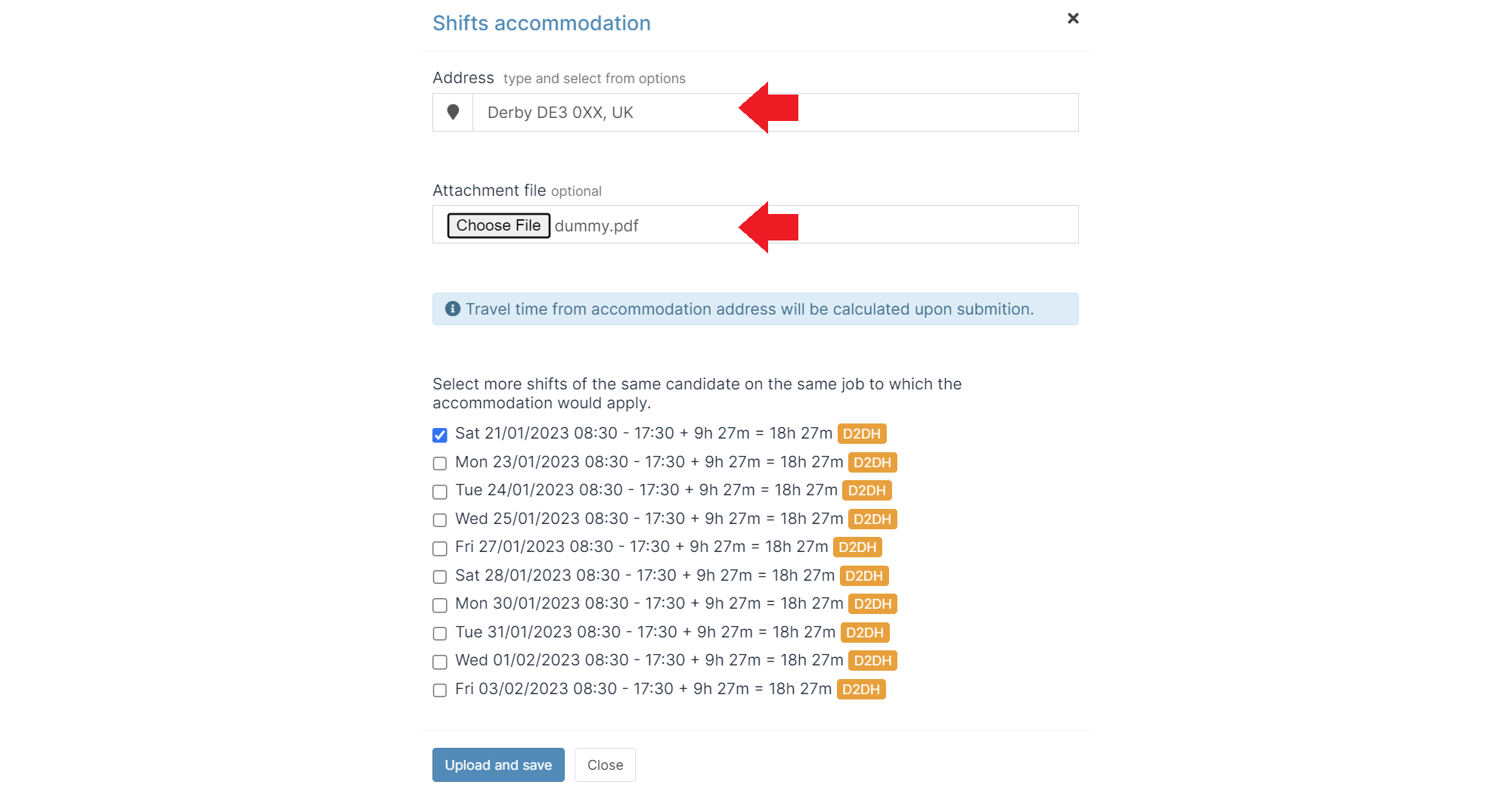
- Select any other upcoming shifts that you want to associate the accommodation details to.
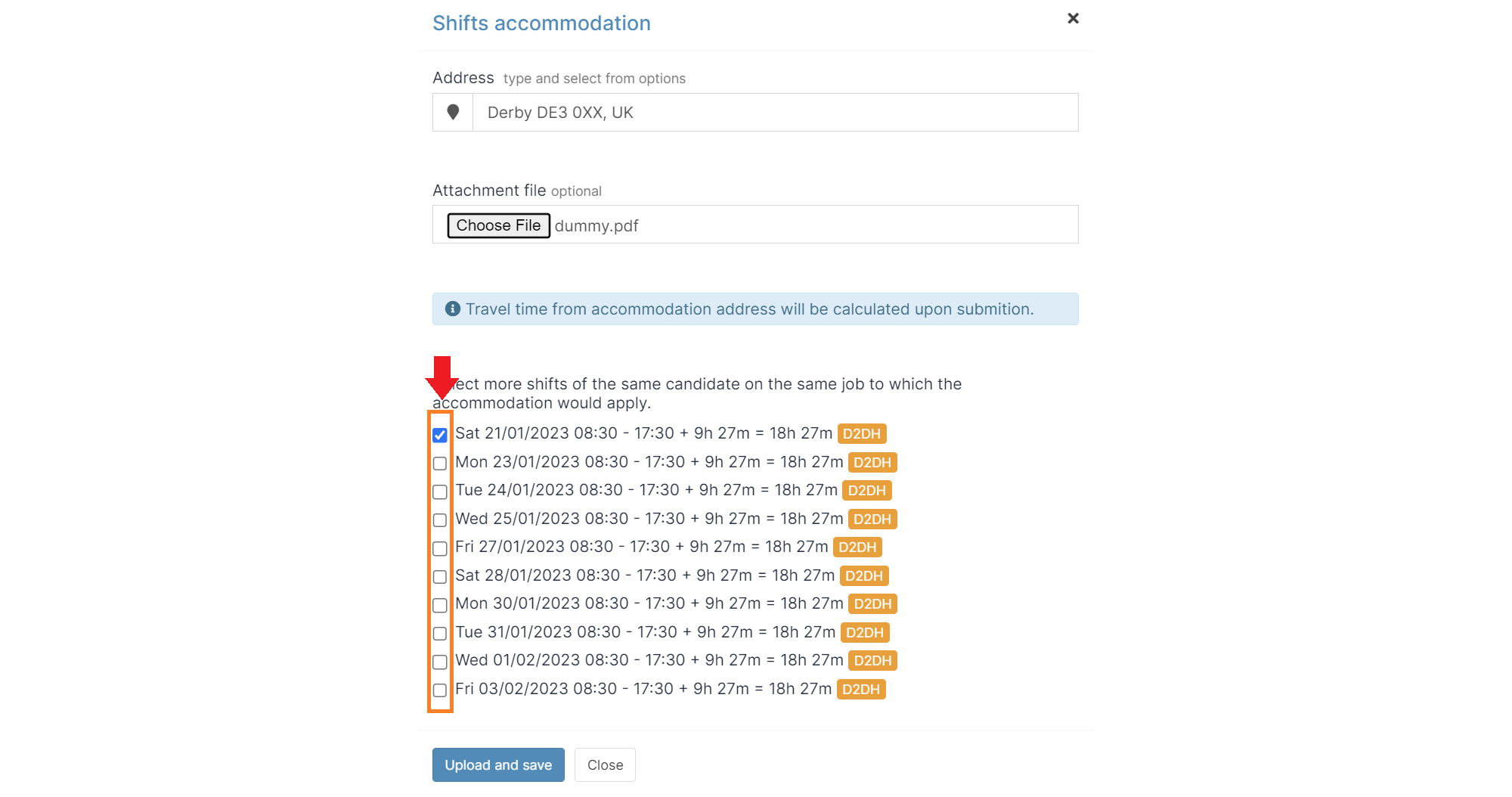
- Click the Save accommodation button in order to upload and save the accommodation details for the selected shift or shifts.
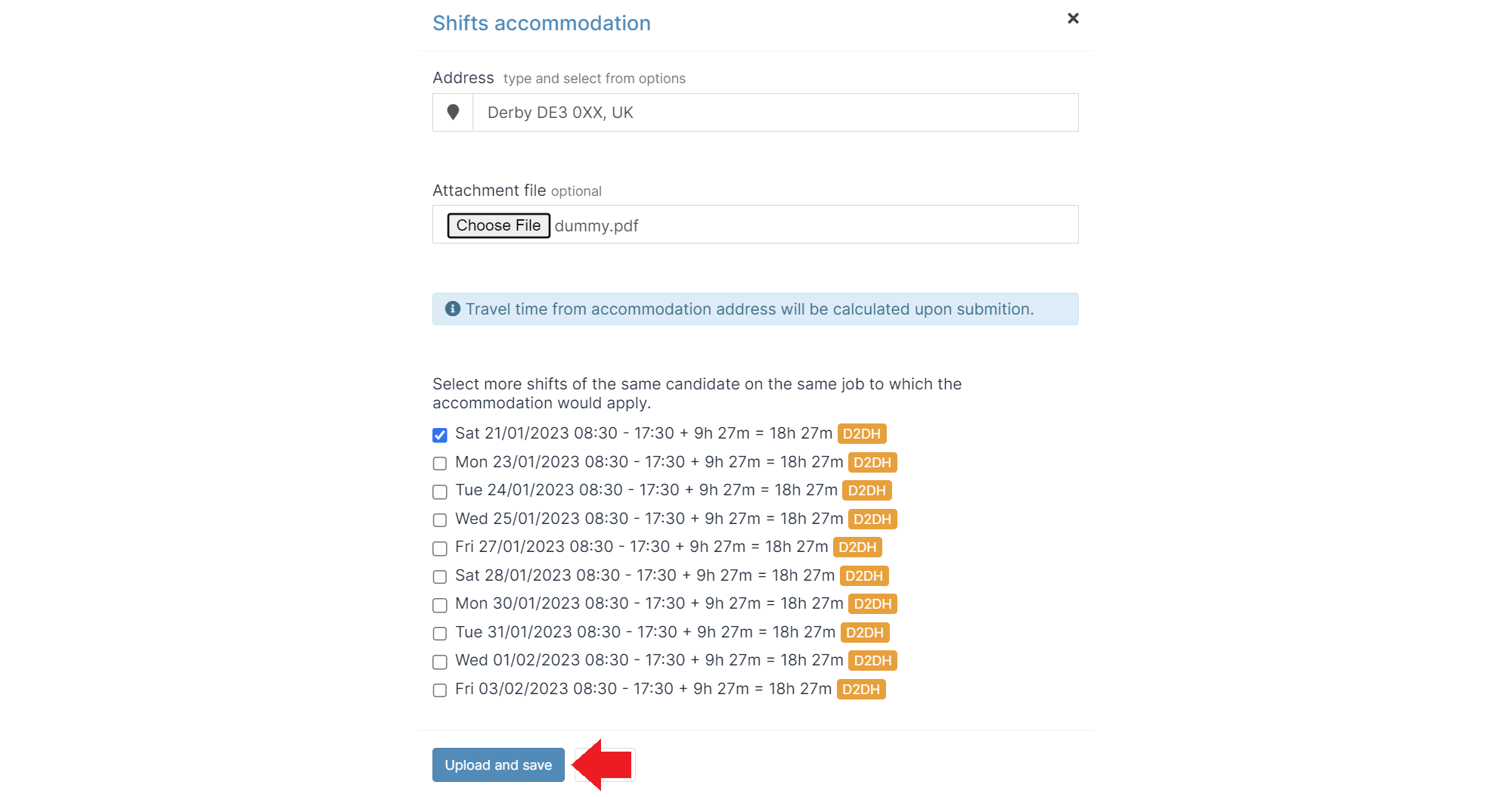
If the total door-to-door duration is under 14 hours, then the door-to-door (D2D) exceedance will be removed.
From the Live Labour Journal
-
On the Live Labour Journal select one or multiple shifts
-
Click on the "🛌 Add accommodation"
-
Fill in the accommodation address (postcode preferrably and be sure to select from the dropdown) and add in a proof of accommodation file.
-
Click the Save accommodation button in order to upload and save the accommodation details for the selected shift or shifts.
This will trigger a recalculation on the Travel Time and on the Fatigue and Risk indices.
As a result Door-to-door, Fatigue and Risk index exceedances might be removed.
Updating accommodation
Currently, updating accommodation is not supported. Please remove accommodation details from a shift and add another one again. Thank you!
Removing accommodation
To remove accommodation from a shift
-
Click on the shift
-
Click on "Remove accommodation"
-
Confirm
This will trigger a recalculation on the Travel Time and on the Fatigue and Risk indices.
As a result Door-to-door, Fatigue and Risk index exceedances might be triggered.